How to Find and Use a Leading Roblox Thumbnail Creator for Your Game
To maximize your game's Click-Through Rate (CTR) in 2026, the most effective Roblox thumbnail creator strategy involves a hybrid workflow. Use Roblox Studio's Free Camera (Shift+P) for high-fidelity base shots, then enhance them using AI tools like VisualKit or RBLX/ai. Ensure your final image is 1920 x 1080 pixels, under 3MB, and saved as a .png to avoid common upload failures. For manual editing, Photopea remains a top-tier free browser-based alternative to Photoshop.
Why your thumbnail is the most important part of your game's success
In the competitive landscape of the Roblox Discovery tab, your thumbnail is the first—and often only—chance to capture a player's attention. As of 2026, the platform has shifted away from basic, unedited screenshots. Today's top-performing experiences utilize high-contrast, AI-enhanced visuals or professional 3D GFX to stand out. A high-quality thumbnail doesn't just look good; it directly impacts your Click-Through Rate (CTR), which Roblox's algorithm uses to determine how prominently to feature your game.
Choosing the right Roblox thumbnail creator depends on your budget, technical skill, and time. Whether you are a solo developer looking for a fast AI solution or a professional GFX artist needing granular control, the ecosystem has evolved to offer specialized tools for every path. This guide explores the technical requirements, the top-rated tools currently available, and the "insider" workflows used by top developers to bypass common platform bugs.
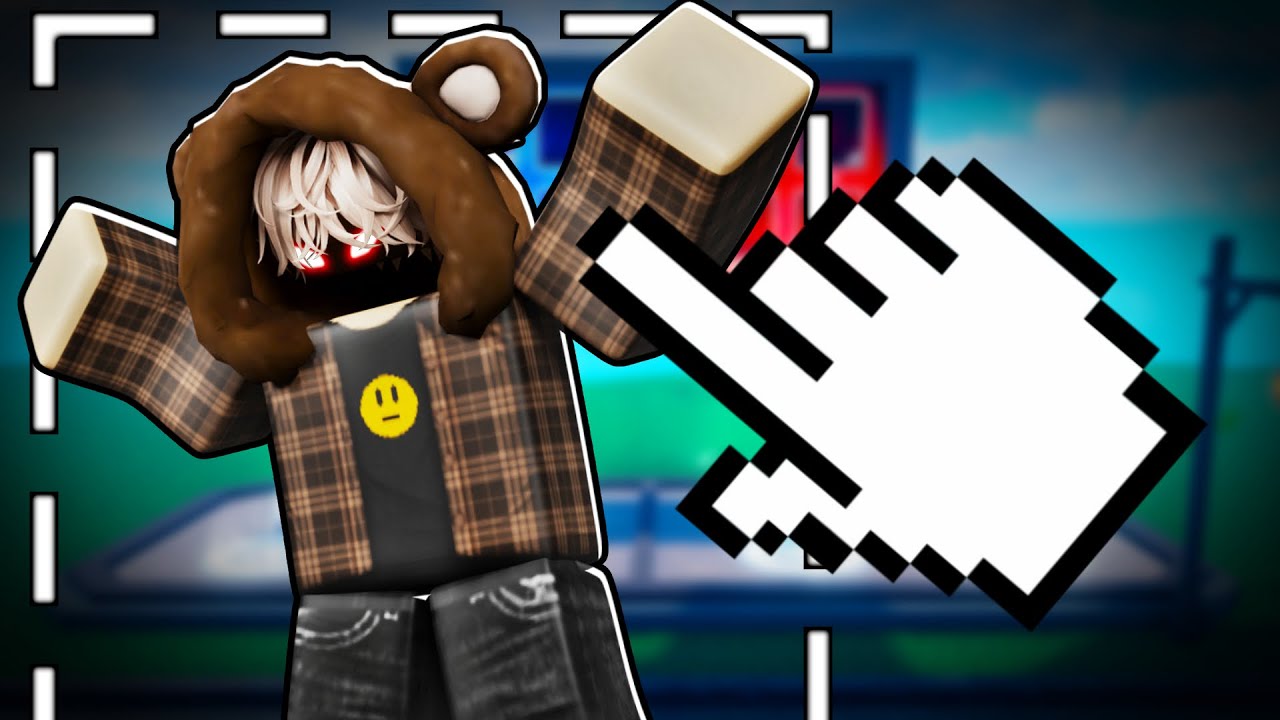
Image source: YouTube
What are the official Roblox thumbnail requirements for 2026?
Before you start designing, you must adhere to the technical specifications set by the Roblox Creator Hub. Failing to meet these standards can result in blurry images, distorted aspect ratios, or outright upload rejections.
| Specification | Requirement | Notes |
|---|---|---|
| Ideal Resolution | 1920 x 1080 pixels | Standard 16:9 aspect ratio for high fidelity. |
| Minimum Resolution | 1280 x 720 pixels | Acceptable, but may look blurry on 4K monitors. |
| Max File Size | 3MB | Strict limit; high-res AI exports often exceed this. |
| Supported Formats | .png, .jpg, .tga, .bmp | Avoid .webp despite some older documentation. |
| Video Limit | Up to 10 items | Videos have a 3-upload monthly quota. |
Understanding the 3MB file size trap
One of the most common issues developers face when using a modern AI Roblox thumbnail generator is the file size. AI tools often export images with high bit-depth or 4K resolution, which can easily push a file to 5MB or 10MB. Roblox will reject these files without a specific error message. If your upload fails, use a tool like TinyPNG or adjust your export settings in Photopea to bring the file under the 3MB threshold while maintaining the 1080p resolution.
Which AI Roblox thumbnail creator should you choose?
AI has fundamentally changed how thumbnails are produced. Instead of spending hours in Blender, developers can now generate high-quality scenes in seconds. Here are the top-rated AI options as of 2026:
VisualKit
Widely regarded as a top choice for "Character Integration." It allows you to upload your specific Roblox avatar so the AI can place your character directly into the generated scene.
RBLX/ai
A highly capable tool for high-volume developers. It claims a user base of over 10,000 creators and specializes in "Action Scenes" with cinematic lighting effects.
CreatorExchange
Excellent for inspiration. It features a library of top-performing thumbnails, allowing you to see what is currently trending before generating your own version.
According to recent data, pricing for these tools typically ranges from $15/mo to $80/mo depending on the volume of credits and the output resolution (1K vs 4K). Most offer a limited free tier, but for professional results without watermarks, a subscription is usually necessary.
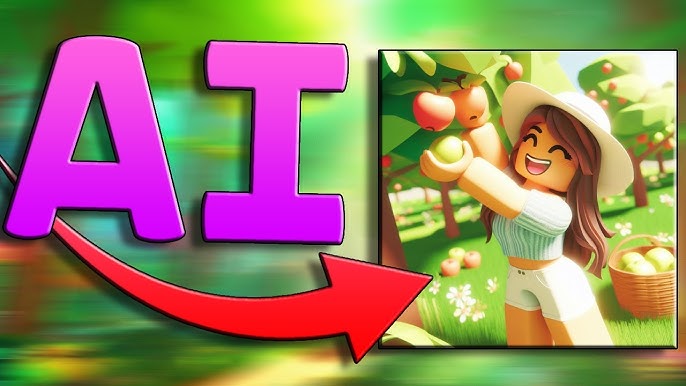
Image source: YouTube
Best free browser-based tools for manual editing
If you prefer a hands-on approach or need to add specific text overlays, browser-based editors are a strong contender. These tools don't require a high-end PC and offer features that rival desktop software.
Photopea: The Professional Standard
Photopea is essentially a free, web-based clone of Photoshop. It supports .PSD files, layers, blending modes, and advanced filters. For developers who want to manually composite characters over AI backgrounds, Photopea is a top-tier option. It allows you to manage the 3MB file limit effectively by adjusting the "Quality" slider during export.
Canva and Adobe Express
These platforms are excellent for creators who aren't graphic designers. They provide thousands of templates and "drag-and-drop" text elements. While they lack the deep layer control of Photopea, they are among the strongest options for adding "Luckiest Guy" or "Banger" fonts—the thick, outlined text styles that dominate the Roblox front page.
How to use the Studio-to-AI hybrid workflow for professional results
The most effective way to create a thumbnail that feels "authentic" to your game while looking professional is the Hybrid Workflow. This method combines the accuracy of Roblox Studio with the artistic power of AI.
- Capture the Base Shot: Open your game in Roblox Studio. Use the Free Camera Mode (Left Shift + P) to fly around your map without the UI. Find a dynamic angle—usually low to the ground looking up at a building or character. Take a high-resolution screenshot.
- AI Beautification: Upload your screenshot to an AI tool like CreatorExchange or RBLX/ai as a "Reference Image." Use a prompt like "Cinematic lighting, sunset, high detail, vibrant colors, Roblox style" while keeping the "Image Strength" high. This ensures the AI keeps your map layout but fixes the flat lighting and textures.
- Character Compositing: Use a tool like Remove.bg to cut out your Roblox character from a separate Studio shot (taken on a green screen).
- Final Polish in Photopea: Bring your AI-enhanced background and your character cutout into Photopea. Add a "Stroke" (outline) and "Drop Shadow" to the character to make them pop. Add high-contrast text with a slight tilt for a dynamic feel.
Image source: Kapwing
How to design thumbnails that actually get clicks on mobile
Over 70% of Roblox players are on mobile devices. A thumbnail that looks great on a 27-inch monitor might be unreadable on a 6-inch phone screen. To ensure your Roblox thumbnail maker efforts aren't wasted, follow these mobile-first principles:
The "Squint Test" for Readability
Shrink your design on your screen until it's about the size of a postage stamp. If you can't tell what's happening or read the text, it's too "busy." Successful mobile thumbnails use large, centered subjects and minimal background clutter. High-saturation "Shock" faces or "Red vs. Blue" color schemes are widely regarded as effective patterns for drawing the eye in a crowded feed.
Text Rules for Small Screens
Keep your text to three words or less. Use fonts with heavy weights and high-contrast outlines. If your background is dark, use white or yellow text with a black outline. Avoid thin, elegant fonts; they disappear on mobile. Popular choices include Luckiest Guy, Grobold, and Titan One.
How to fix common Roblox thumbnail upload errors
Even with a perfect design, the upload process can be frustrating. Many developers encounter "Failed to Process Image" or find the upload button missing entirely. Here is how to troubleshoot these issues based on community wisdom from the DevForum.
The Permission Trap
If you are developing for a Group, you might find that you cannot see the "Upload" button in the Creator Dashboard. This is often because your Group Role only has "Edit" permissions. To upload thumbnails, you specifically need the "Edit & Publish all group experiences" permission. If you aren't the owner, you'll need to ask them to update your role settings.
Moderation Rejections
Every image uploaded to Roblox is moderated. Your account can be flagged if your thumbnail is deemed "Misleading." For example, if your thumbnail shows a "Free Robux" machine or items that don't exist in your game, it may be rejected. Additionally, ensure your AI-generated characters don't have "glitched" limbs or inappropriate features, as the automated moderation system can be sensitive to AI artifacts.
Color Profile Issues
If your thumbnail looks "washed out" or changes colors after uploading, you likely exported it using the CMYK color profile (used for printing). Roblox expects RGB. In Photopea or Photoshop, ensure your document is set to RGB before exporting to maintain color accuracy.
Key Takeaways for Roblox Thumbnail Success
Creating a high-performing thumbnail is a blend of technical precision and creative strategy. Here is your checklist for success:
- Resolution: Always aim for 1920x1080 pixels for the sharpest results.
- Format: Stick to .png or .jpg; avoid .webp to prevent silent upload failures.
- File Size: Keep your final export under 3MB to satisfy the platform's limit.
- Workflow: Use the Studio-to-AI hybrid method for the most professional look.
- Mobile Focus: Use high contrast and limit text to 3 words for small-screen readability.
- Permissions: Ensure you have "Edit & Publish" rights if working in a group.
- Moderation: Avoid misleading imagery to keep your account in good standing.
Start by capturing a unique angle in Roblox Studio today and see how a simple lighting enhancement can transform your game's growth.
Frequently Asked Questions
- What is a top-rated Roblox thumbnail maker for free?
- Photopea is widely considered one of the strongest free options because it offers professional-grade tools in a browser. For beginners, the free tier of Canva or Adobe Express provides excellent templates and easy text tools without a steep learning curve.
- How do I make a Roblox thumbnail without using Blender?
- You can use the "Hybrid Workflow." Capture a high-quality screenshot in Roblox Studio using the Free Camera (Shift+P), then use an AI tool like VisualKit or RBLX/ai to enhance the lighting and textures. This bypasses the need for complex 3D modeling software while still achieving a professional GFX look.
- Can you get banned for using AI-generated thumbnails on Roblox?
- No, using AI is not against the Terms of Service. However, you must ensure the AI output does not violate standard moderation rules (no gore, no inappropriate content) and is not "misleading." If the thumbnail depicts a completely different game style than what is actually playable, it could be rejected.
- Why is my Roblox thumbnail blurry after I upload it?
- This usually happens if you upload an image with a resolution lower than 1280x720 or if the aspect ratio is not 16:9. If you upload a square image, Roblox will stretch it to fit the 16:9 slot, causing distortion. Always design at 1920x1080 for the best results.
- How many thumbnails can a single Roblox game have?
- You can upload up to 10 items in the thumbnail gallery, which can be a mix of images and videos. Note that video thumbnails cost 500 Robux to upload and are subject to a strict monthly quota of three per developer.
- What fonts do most successful Roblox creators use?
- The most popular fonts for Roblox thumbnails are "Luckiest Guy," "Banger," "Grobold," and "Titan One." These fonts are thick, easy to read on mobile, and look great with a heavy black outline or drop shadow.