How to Get and Play Fortnite for Free on Every Major Platform
Fortnite is a 100% free-to-play ecosystem in 2026. You can download it directly on PC, PlayStation, Xbox, and Nintendo Switch without paying a dime. If you lack storage space or have a low-end device, you can play instantly via your web browser using cloud gaming services like Xbox Cloud Gaming or Amazon Luna. No paid console subscriptions (like Xbox Live Gold) are required to play the downloaded version.
Navigating the modern gaming landscape can be confusing, especially when trying to determine which titles genuinely cost nothing to play. As of 2026, Fortnite remains a completely free-to-play platform. However, the methods for accessing it have expanded significantly beyond traditional downloads, encompassing cloud streaming, mobile sideloading, and browser-based workarounds.
Whether you are trying to install the game on a brand-new console, looking to bypass hardware limitations on an older laptop, or trying to figure out how to get the game running on a smartphone, the options are plentiful. This comprehensive resource breaks down exactly how to access the official Fortnite ecosystem across all devices, optimize your settings for budget hardware, and avoid common technical pitfalls.
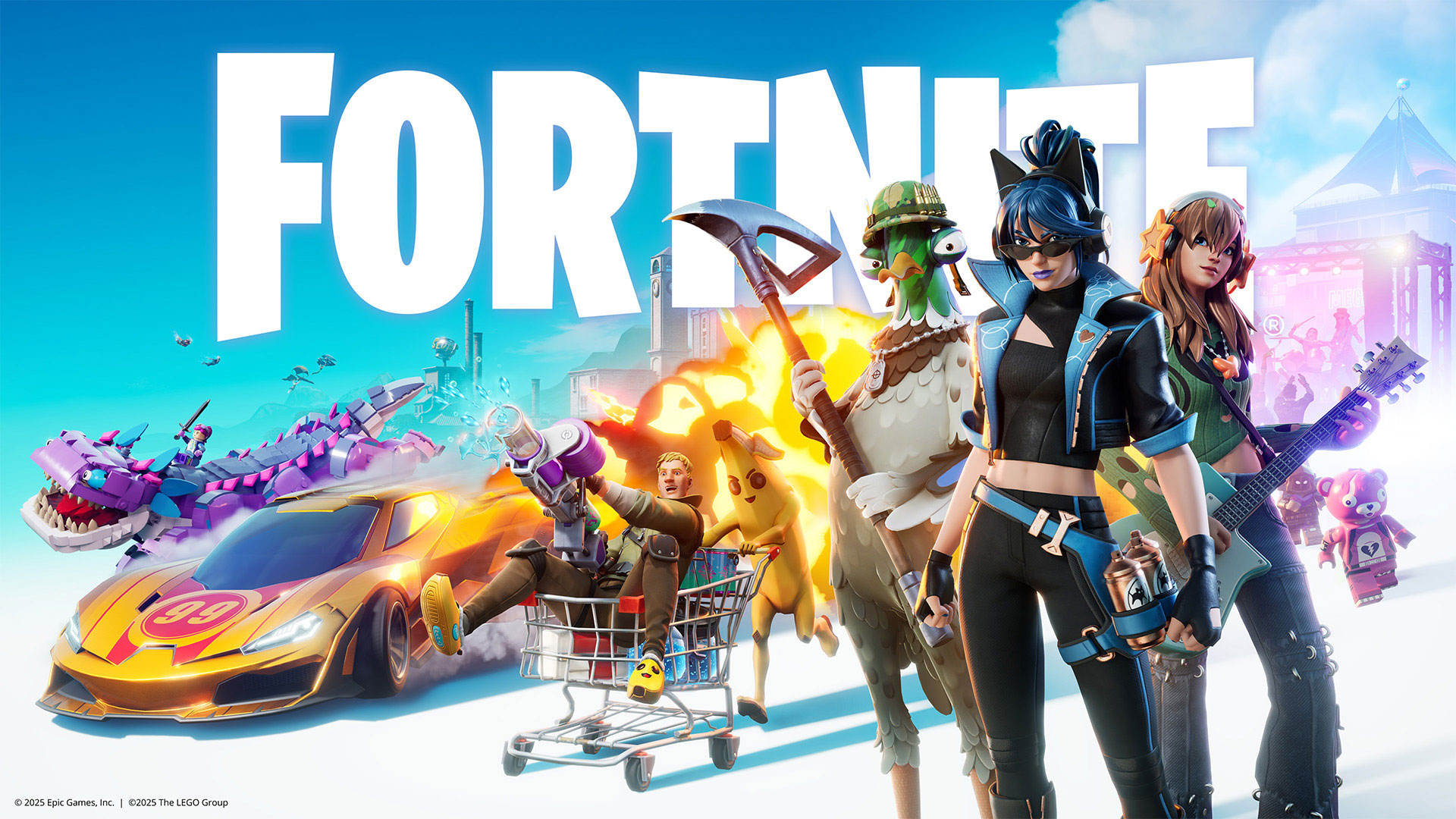
Image source: Fortnite
What Does the Fortnite Free to Play Experience Include?
When people search for a "Fortnite free game," they often wonder if they are getting a restricted trial version or the full experience. The reality is that the free version of Fortnite is the complete game. Epic Games utilizes a monetization model where the gameplay mechanics, maps, and core modes are entirely free, while optional cosmetic items and progression tracks cost money.
As of the current 2026 season (which concludes on August 20, 2026), downloading the free client grants you unrestricted access to five core pillars of the game:
- Battle Royale: The classic 100-player survival mode featuring building mechanics.
- Zero Build: A highly popular variant that removes the building mechanics entirely, focusing purely on gunplay and positioning.
- LEGO Fortnite: A massive, open-world survival crafting game built within the Fortnite engine.
- Fortnite Festival: A rhythm-based music game where players perform hit songs.
- Rocket Racing: A high-speed arcade racing experience.
Beyond these official modes, the free client also provides access to over one million creator-made games built using the Unreal Editor for Fortnite (UEFN). You can browse these diverse Fortnite Experiences directly from the main menu without spending any money.
How to Play Fortnite Without Downloading the Game
One of the most significant advancements in recent years is the ability to play high-fidelity games without downloading massive files. If you are using a school laptop, a Mac, an older PC, or simply do not have the 50+ gigabytes of storage required for a local installation, cloud gaming stands out as a top choice.
Cloud gaming runs the game on a remote server and streams the video feed to your screen, much like watching a YouTube video, while sending your controller or keyboard inputs back to the server.
Using Xbox Cloud Gaming
Microsoft offers one of the most accessible ways to play. You do not need an Xbox console or a paid Game Pass subscription to use this specific feature for Fortnite. By visiting Xbox Cloud Gaming in a supported web browser (Chrome, Edge, or Safari), you can log in with a free Microsoft account and launch the game instantly. This method supports both touchscreen controls on mobile devices and connected gamepads.
Using Amazon Luna
Similarly, Amazon Luna provides a browser-based streaming option. If you have an Amazon Prime account, you can often access specific rotating titles, but Fortnite is generally available to stream directly through the Luna web app. This is particularly useful for users on Chromebooks or Fire tablets.
The PlayStation Cloud Catch
While cloud streaming is highly accessible on PC and mobile, console players face different rules. If you want to stream Fortnite on a PlayStation 5 rather than downloading it, you must be aware of a specific limitation. Unlike the free Xbox browser method, streaming games directly from the PlayStation cloud infrastructure requires a paid PlayStation Plus Premium subscription. For most PlayStation users, downloading the game locally is the far better option.
| Feature | Local Download | Cloud Gaming (Browser) |
|---|---|---|
| Storage Required | 50GB - 80GB+ | 0GB (Browser Cache Only) |
| Internet Need | Standard connection (for multiplayer) | High-speed, stable 5GHz Wi-Fi required |
| Input Latency | Minimal (Hardware dependent) | Noticeable on slower connections |
| Graphics Quality | Depends on your local GPU | High (Rendered on remote server) |
| Cost | 100% Free | 100% Free (via Xbox Cloud) |
Where to Download Fortnite for PC and Consoles
For players who want the lowest possible input delay and the highest graphical fidelity, a local installation remains the optimal route. Because Fortnite is a live-service game, it requires a dedicated launcher to manage its frequent updates.
PC and Mac Installation
To play on a Windows PC, you must download the Epic Games Launcher from the official website. Once installed, you create a free Epic Games account, search for Fortnite in the store, and add it to your library. It is important to note that native Mac support has faced historical legal hurdles; while you can download the launcher on macOS, many Mac users find that cloud gaming provides a more reliable and updated experience in 2026.
PlayStation and Xbox Consoles
Console installation is incredibly straightforward. Navigate to the PlayStation Store or the Xbox Store on your respective console and search for the game. A crucial detail that often confuses new players is the multiplayer subscription requirement. You do not need an active PlayStation Plus or Xbox Live Gold (Core) subscription to play the downloaded version of Fortnite. Both Sony and Microsoft exempt free-to-play games from their premium multiplayer paywalls.
Nintendo Switch
Switch users can find the game directly on the Nintendo eShop. Similar to the other consoles, a Nintendo Switch Online subscription is not required to play. However, due to the Switch's hardware limitations, players should expect lower framerates and reduced graphical fidelity compared to current-generation consoles.
How to Get Fortnite on Android and iOS Devices
The mobile landscape for Fortnite is notoriously complex due to ongoing legal disputes between Epic Games, Apple, and Google regarding app store fees. As a result, simply searching for the game in your phone's default app store will often yield confusing results or clone applications.
Image source: GeForce NOW Powered by CloudGG
Android Sideloading Guide
While you might see listings related to the game on the Google Play Store, the most reliable way to get the native Android application is through a process called sideloading. This involves downloading the software directly from the developer rather than a centralized store.
- Open your Android web browser and navigate to the official Epic Games mobile download page.
- Download the "Epic Games App" APK file. Your browser will likely display a security warning about downloading files from unknown sources.
- Go to your Android device settings, navigate to Security/Privacy, and enable "Install Unknown Apps" for your specific web browser.
- Open the downloaded APK to install the Epic Games App.
- Launch the Epic Games App, locate Fortnite, and tap install to download the actual game files.
iOS and iPadOS Solutions
For iPhone and iPad users, native app availability fluctuates based on regional legislation (such as the Digital Markets Act in Europe). However, for a globally consistent experience in 2026, cloud gaming is the recommended approach. By pinning the Xbox Cloud Gaming or Amazon Luna web page to your iOS home screen, it functions almost identically to a native app, complete with dedicated touchscreen overlays designed specifically for the game.
Can You Access Fortnite Save the World for Free?
This is one of the most frequently misunderstood aspects of the ecosystem. When the game originally launched, "Save the World" was a paid, cooperative player-versus-environment (PvE) campaign. For years, players had to purchase a "Founder's Pack" to access it.
However, the structure has evolved. According to recent official listings and Epic Games Store categorizations, Save the World experiences are now integrated differently. While legacy players who purchased Founder's Packs still earn V-Bucks by completing daily quests in this mode, modern free-to-play users experience a different progression system.
If you access the free version of Save the World today, you will be able to play the missions, build forts, and fight computer-controlled enemies, but your rewards will be limited to Battle Pass XP rather than premium V-Bucks currency. This allows free players to enjoy the narrative and tower-defense mechanics without a paywall, though it removes the currency-farming aspect that early adopters enjoy.
Recommended Settings to Boost Performance on Older Hardware
Because the game is free, it attracts millions of players using budget laptops, older consoles, and non-gaming PCs. If your hardware is struggling to maintain a smooth framerate, adjusting a few specific settings can dramatically improve your experience.
Enable Performance Mode (PC Only)
If you are playing on a PC, navigate to your Video Settings and look for the "Rendering Mode" option. Change this from DirectX 11 or 12 to "Performance Mode." This setting significantly reduces the graphical load, lowering texture quality and disabling advanced lighting, which can double or even triple your frames per second (FPS) on integrated graphics cards.
Uncap Fake Framerates
According to competitive analysis by Scuf Gaming, players should ensure their framerate is not artificially capped below their monitor's refresh rate. If you have a 60Hz monitor, capping your game at 60 FPS can sometimes introduce input lag. Setting the cap slightly higher (e.g., 120 FPS) can make mouse and controller inputs feel significantly more responsive, even if your screen cannot display all the extra frames.
Turn On Visualized Sound Effects
This is arguably the most important setting for any player, especially those who cannot afford expensive 3D audio headsets. Found in the Audio Settings menu, "Visualize Sound Effects" places a radial HUD on your screen that visually indicates the direction of footsteps, gunfire, vehicles, and treasure chests. It provides a massive situational awareness advantage and is widely regarded as an essential setting for competitive play.
Advanced Strategies to Win More Games as a Free Player
You do not need to spend money on premium skins to secure victories. Success in Battle Royale relies heavily on positioning, psychology, and game sense. Community discussions and technical gameplay analysis have highlighted several strategies that consistently yield results.
The "Skin Focus" Technique
Many new players struggle with aiming because they stare intensely at their own crosshair. A highly effective technique used by veteran players is to shift your visual focus entirely to the enemy's character model (their "skin"). By keeping your eyes locked on the target rather than the center of your screen, your brain's natural hand-eye coordination takes over, often resulting in smoother tracking and more consistent shot placement.
The "Chaos Guy" Role in Squads
If you are playing in a Trio or Squad and feel your mechanical skills are lacking, you can adopt the "Chaos Guy" strategy. Instead of engaging in precise long-range firefights, your dedicated role is to cause maximum disruption. This involves driving vehicles through enemy structures, spamming grenades, and constantly repositioning to draw enemy fire. By forcing the opposing team to panic and track multiple erratic threats, you create easy openings for your more accurate teammates to secure eliminations.
Storm Edge Rotation
Map positioning is critical. Rather than running directly to the center of the safe zone—where you can be attacked from 360 degrees—practice "Storm Edge Rotation." This involves moving along the very edge of the shrinking storm circle. By keeping the storm directly at your back, you eliminate an entire direction from which enemies can flank you, effectively using the hazardous zone as a tactical shield.
"Mastering rotation and visual audio cues will win you more games than any cosmetic item ever could. The game rewards situational awareness above all else."
Browser Based Alternatives for Low End Computers
Sometimes, even cloud gaming is not an option. If you are on a heavily restricted network (like a school or corporate Wi-Fi) that blocks streaming services, or if your hardware is exceptionally weak, there are browser-based alternatives that capture the essence of the game.
These "Fortnite Lite" experiences run directly in standard web browsers without any downloads or account requirements. You can find many of these in the CrazyGames Battle Royale Collection.
- 1v1.lol This is a highly popular browser game designed specifically to emulate the building and box-fighting mechanics of Fortnite. It is an excellent tool for practicing your editing speed and ramp rushes when you cannot access the main game.
- Zombs Royale If you prefer the survival aspect over the building mechanics, this top-down, 2D Battle Royale offers a fast-paced, highly accessible alternative that runs smoothly on almost any device.
How to Fix Common Login and Gameplay Errors
Live-service games frequently encounter bugs, especially following major seasonal updates. Understanding how to troubleshoot these issues will save you significant frustration.
Resolving the Login Loop
A common issue reported in 2026 involves players getting stuck in a "login failed" loop, which is occasionally triggered by navigating too quickly to the Quests tab upon startup. If you encounter this, the most reliable fix is to force-close the application entirely, clear your device's cache (or verify game files via the Epic Games Launcher on PC), and allow the main lobby to fully load its assets for 30 seconds before opening any sub-menus.
Fixing Input Bugs (Weapon Won't Fire)
Players occasionally experience a frustrating glitch where their equipped weapon refuses to fire when the trigger is pulled. This is usually a desync issue between the client and the server. You can typically resolve this instantly during a match by rapidly swapping to your pickaxe and back to your weapon, or by quickly triggering an emote to reset your character's animation state.
Frequently Asked Questions
Can I play Fortnite on a laptop for free without downloading it?
Is Fortnite Save the World free to play in 2026?
Do I need Xbox Live Gold or PS Plus to play Fortnite?
Why is Fortnite not on the Google Play Store?
What is the download size for Fortnite in 2026?
The Bottom Line for New Players
Getting started with Fortnite is easier and more accessible than ever. Whether you are downloading the client for maximum performance or streaming it through a browser to bypass hardware limits, the core experience remains entirely free.
- Choose your access method: Download locally for competitive low-latency play, or use Xbox Cloud Gaming for instant, no-storage access.
- Optimize your audio: Always enable "Visualized Sound Effects" in the settings to gain a massive situational awareness advantage.
- Adjust PC performance: Switch to "Performance Mode" on older computers to drastically improve your framerate.
- Practice smart positioning: Utilize the "Storm Edge Rotation" strategy to prevent enemies from flanking you during matches.
- Protect your account: Ignore all third-party sites claiming to offer free V-Bucks; they are universally designed to steal login credentials.
- Explore beyond Battle Royale: Take advantage of the free LEGO survival mode, Rocket Racing, and millions of creator-made maps.