How to Use a Geometry Dash Stats Viewer to Track Your Rank and Progress
Quick Summary: A Geometry Dash stats viewer allows players to track their global ranking, analyze save file data, and verify their hardest level completions outside of the game. The community relies on three main types of tools: Pointercrate for competitive Extreme Demon rankings, Global Stats Viewer for overall account progression, and GD Colon’s Save Explorer for deep, offline analysis of personal attempts and hidden metrics.
Geometry Dash has evolved far beyond a simple mobile rhythm platformer. As of 2026, the game boasts a highly competitive ecosystem where players spend thousands of hours mastering user-created levels. However, tracking that progress has historically been a challenge. While the game features an internal statistics menu, serious players rely almost exclusively on external, community-developed tools to measure their standing.
Whether you are a casual completionist trying to count your total jumps or a top-tier player grinding the Demonlist, understanding how to utilize a Geometry Dash stats viewer is essential. This article breaks down the top tools available, explains how to link your account to global leaderboards, and provides a strategic workflow for monitoring your data accurately.
Why Official In-Game Leaderboards Are No Longer the Standard
For newer players, the most logical place to check their rank is the "Top 100" button on the game's main menu. However, the Geometry Dash community largely ignores these official leaderboards. Understanding why requires a brief look at the game's technical history and moderation challenges.
During the extended wait between the 2.1 and 2.2 updates, the official leaderboards became heavily compromised. Because Geometry Dash relies on client-side authority—meaning the game trusts the data your device sends to the server—malicious users could easily manipulate their local save files to grant themselves impossible amounts of stars, user coins, and creator points. RobTop Games, the solo developer behind the title, frequently had to freeze the leaderboards to prevent hacked accounts from dominating the top spots.
Furthermore, the official servers often cache data to handle the massive volume of traffic from millions of active players. This means that even legitimate players might not see their star count update on the global leaderboard for days or weeks. According to PlayTracker's insights, a significant portion of the active player base falls into the "Determined Completionist" category, making accurate, real-time tracking a high priority.
To solve this, the community built its own infrastructure. External stats viewers provide manual verification, video proof requirements, and more frequent API polling, ensuring that the players at the top of the rankings actually earned their spots through legitimate gameplay.

Image source: globalstatsviewer.com
Choose the Right Geometry Dash Stats Viewer for Your Goals
Because players have different objectives, there is no single tool that covers every metric perfectly. The community has developed specialized platforms tailored to specific playstyles. Below is a comparison of the most widely used tools in 2026.
| Tool Name | Primary Focus | Data Source | Verification Required? |
|---|---|---|---|
| Pointercrate | Top 150 Extreme Demons | Manual Submission | Yes (Strict Video Proof) |
| Global Stats Viewer | All Rated Levels & Stars | GD API & AREDL | Yes (Account Linking) |
| GDBrowser | Quick Profile Lookups | GD Server API | No |
| Save Explorer | Personal/Hidden Stats | Local Save File | No (Offline Tool) |
Pointercrate for Competitive Demon Hunters
Competitive If your goal is to beat the absolute hardest levels in the game, Pointercrate is the definitive standard. This platform hosts the "Demonlist," a meticulously ranked catalog of the top 150 hardest Extreme Demons.
Pointercrate does not track your total stars or how many easy levels you have beaten. Instead, it uses a proprietary "Demonlist Score." Players earn points based on the difficulty of the Extreme Demons they complete. For example, verifying or beating the #1 hardest level yields significantly more points than beating the #150 level. As of recent tracking, top players like Zoink maintain Demonlist scores exceeding 7,500 points, setting a high standard for the competitive scene.
The platform also offers geographic filtering, allowing users to view the top players in specific countries, which has fostered intense regional rivalries within the community.
Global Stats Viewer for All-Around Player Rankings
All-Around For players who focus on star grinding, moon collecting, or beating a high volume of easier demons, the Global Stats Viewer is a highly recommended option. Unlike Pointercrate, which only cares about the top 150 levels, this tool tracks accomplishments across all rated levels in the game.
It integrates data from the Geometry Dash API and the All Rated Extreme Demon List (AREDL). This provides a holistic view of a player's account. However, it is not an automated scraper. To appear on this leaderboard, players must actively link their accounts, which helps filter out inactive or banned users from the rankings.
GDBrowser for Quick Profile Lookups and API Access
Web Utility Created by community developer GD Colon, GDBrowser serves as a web-based wrapper for the official Geometry Dash API. It allows anyone to search for player profiles, view level leaderboards, and read level comments directly from a web browser without launching the game.
GDBrowser stands out for its "Accurate Leaderboards" feature, which attempts to filter out obvious hackers from level-specific rankings. It is also heavily utilized by other developers, as it provides clean API endpoints to pull game data for secondary projects and Discord bots.
GD Colon’s Save Explorer for Deep Personal Data Analysis
Offline Analysis Sometimes, the data you want isn't public. GD Colon’s Save Explorer is a 100% offline tool that decodes your local save files. Because it runs locally in your browser, it never uploads your data to a server, making it highly secure.
This tool reveals "hidden" statistics that the game tracks but doesn't display prominently. Users can view their exact total jump count, total attempts across all levels, specific rewards pulled from daily chests, and even data regarding unreleased levels sitting in their editor. It is an invaluable resource for players who want to analyze their consistency and time investment.
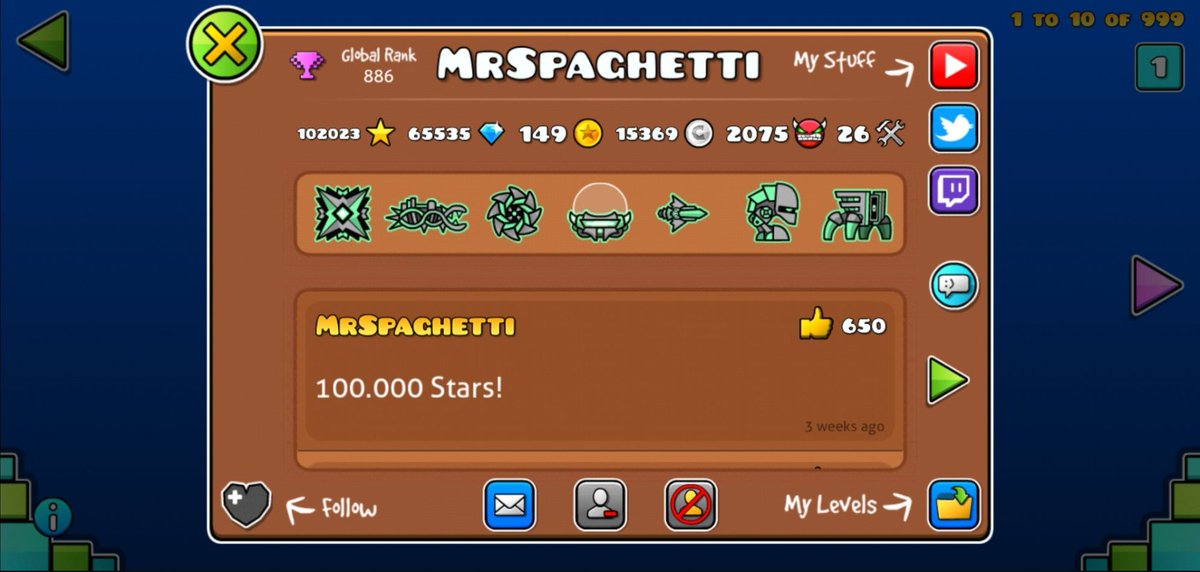
Image source: Twitter
How to Link Your Account and Appear on Global Leaderboards
Because community leaderboards require verification to maintain integrity, simply playing the game is not enough to get ranked. You must actively sync your data and prove your identity. Follow this standard workflow to ensure your stats are tracked globally.
- Sync Your Account In-Game: Open Geometry Dash, navigate to the Account Settings menu, and click "Save." This forces your local device to push its most recent data to RobTop's official servers.
- Refresh the API via GDBrowser: Go to GDBrowser, search for your exact username, and view your profile. If your stats look outdated, click the "Update" button. This forces the web wrapper to fetch the freshest data from the official servers, waking up the API.
- Link to Global Stats Viewer: Join the official Discord server for the Global Stats Viewer. Follow their automated bot prompts to link your Discord account to your Geometry Dash account. You will typically need to change your in-game profile icon or post a specific comment on your profile to verify ownership.
- Submit Records to Pointercrate (If Applicable): If you have beaten a Top 150 Extreme Demon, you must submit it manually. Go to the Pointercrate website, fill out the submission form, and provide a link to your video proof.
Submitting to the Demonlist requires strict evidence. Your video must include audible mouse clicks or screen taps, a visible cheat indicator (if using allowed mods like Megahack), and the raw, unedited end-level screen showing your attempt count and completion time. Failure to provide these will result in an automatic rejection.
Why Your Stats Look Different Across Different Viewers
A common source of confusion among players is seeing conflicting numbers depending on which tool they use. You might have 15,000 stars in-game, 14,950 on GDBrowser, and a completely fluctuating rank on Pointercrate. These discrepancies are normal and stem from how data is processed.
Local Save Data vs Server-Side API Data
Geometry Dash stores your immediate progress in a local file called CCGameManager.dat. Every time you jump, die, or collect a star, this local file updates instantly. However, the game does not send this data to the server continuously, as doing so would crash the servers.
Instead, the game only syncs when you manually save or when certain background triggers occur. Therefore, if you use the offline Save Explorer, you are looking at your absolute most current data. If you look at GDBrowser, you are looking at the last snapshot your game successfully sent to the server. This is why metrics like "Total Jumps" almost always differ between the two.
The Battleground Phenomenon and Point Redistribution
If you track your rank on Pointercrate, you may occasionally log in and find that your rank has dropped significantly, even if you haven't stopped playing. The community refers to this as the "Battleground Phenomenon," a term popularized in Reddit discussions regarding leaderboard volatility.
This happens because Demonlist points are dynamic. When a new, incredibly difficult level (such as Tidal Wave or Acheron) is verified and placed at the #1 spot, every other level on the list is pushed down one rank. The #1 level becomes #2, the #2 becomes #3, and so on. Because lower-ranked levels award fewer points, the point value of your past achievements literally decays. Furthermore, the level that was previously at #150 is pushed off the list entirely, meaning anyone whose hardest demon was that level loses those points completely.
Find Your Geometry Dash Save Files on PC and Mobile
To use offline tools like GD Colon's Save Explorer, you need to locate your raw save files. The game uses two primary files: CCGameManager.dat (which holds your stats, icons, and completed levels) and CCLocalLevels.dat (which holds the levels you are currently building in the editor).
For Windows PC Users:
You can quickly access this by pressing Win + R, typing %localappdata%/GeometryDash, and hitting Enter.
For MacOS Users:
For Mobile Users (Android/iOS):
Accessing save files on mobile is significantly more difficult due to modern operating system sandboxing. On Android, the files are located in /data/data/com.robtopx.geometryjump/, but accessing this directory typically requires a rooted device. iOS users face similar restrictions and generally need to use third-party file explorer software via a PC connection to extract the app data. For mobile players, it is often easier to rely on server-side viewers like GDBrowser rather than attempting local file extraction.

Image source: globalstatsviewer.com
The Most Efficient Workflow to Monitor Your Geometry Dash Progress
To avoid data loss and keep an accurate record of your achievements, top players utilize a specific routine. We call this the "Stats Viewer Stack." By using these tools in a specific order, you ensure your data is safe, verified, and accurately reflected in the community.
1. Daily: Save Explorer
At the end of a long session, use the offline Save Explorer to check your raw attempt counts. This helps you gauge your consistency on a specific level without relying on server syncs.
2. Weekly: GDBrowser
Once a week, manually save your account in-game, then look yourself up on GDBrowser. Click "Update" to ensure your new star and demon counts have successfully registered with the API.
3. Monthly: Global Stats Viewer
Check the Global Stats Viewer to see your percentile rank in the broader community. This is a great way to set monthly goals for star grinding or creator point acquisition.
4. Milestone: Pointercrate
Reserve Pointercrate exclusively for major milestones. Only interact with this platform when you are preparing to record and submit a completion of a Top 150 Extreme Demon.
Frequently Asked Questions
- How do I see my rank on the Geometry Dash Demonlist?
- To view your rank among the top Extreme Demon players, visit the Pointercrate Stats Viewer. You will only appear on this list if you have successfully recorded and submitted video proof of completing a Top 150 demon, and the moderation team has approved it.
- Why am I not showing up on the Global Stats Viewer?
- The Global Stats Viewer does not automatically scrape every player in the game. You must manually link your Geometry Dash account to the platform via their Discord verification process. Additionally, you typically need to have completed at least one rated demon to be indexed.
- Is GD Colon’s Save Explorer safe to use?
- Yes. The Save Explorer is a client-side, offline tool. When you upload your
CCGameManager.datfile, the decoding happens entirely within your web browser. No data is sent to external servers, ensuring your account information and passwords remain completely private. - Why are the in-game leaderboards frozen?
- The official in-game leaderboards have historically been frozen by the developer to combat rampant hacking and stat manipulation. While updates occasionally refresh the list, the sheer volume of illegitimate scores makes manual moderation by the developer nearly impossible, leading the community to rely on external tools.
- Can I see my total playtime if I don't use Steam?
- If you play on mobile, the game does not natively track total hours played. However, you can use the Save Explorer to view your total attempt count across all levels. By multiplying your total attempts by an average attempt duration (usually estimated at 5-10 seconds), you can calculate a rough estimate of your total playtime.
- How do I refresh my profile on GDBrowser?
- Search for your username on GDBrowser and navigate to your profile page. If the stats are outdated, look for the "Update" or "Refresh" button on the page. Clicking this forces the tool to bypass its cache and pull the most recent data directly from the Geometry Dash servers.
Final Thoughts
Tracking your progress in Geometry Dash requires navigating a mix of local files, server APIs, and community-run leaderboards. Because the official in-game systems are often delayed or compromised by illegitimate scores, mastering external stats viewers is a necessary step for any dedicated player.
- Identify your primary goal: use Pointercrate for competitive Extreme Demons, or Global Stats Viewer for overall star and level completion.
- Locate your
CCGameManager.datfile on your PC to access hidden metrics via offline tools. - Sync your account manually in-game before checking web-based APIs to ensure your data is current.
- Verify your identity through Discord OAuth to appear on community-driven global leaderboards.
- Record your gameplay with clicks and cheat indicators visible if you plan to submit to the Demonlist.
- Expect rank fluctuations on competitive lists due to the dynamic point redistribution when new levels are rated.